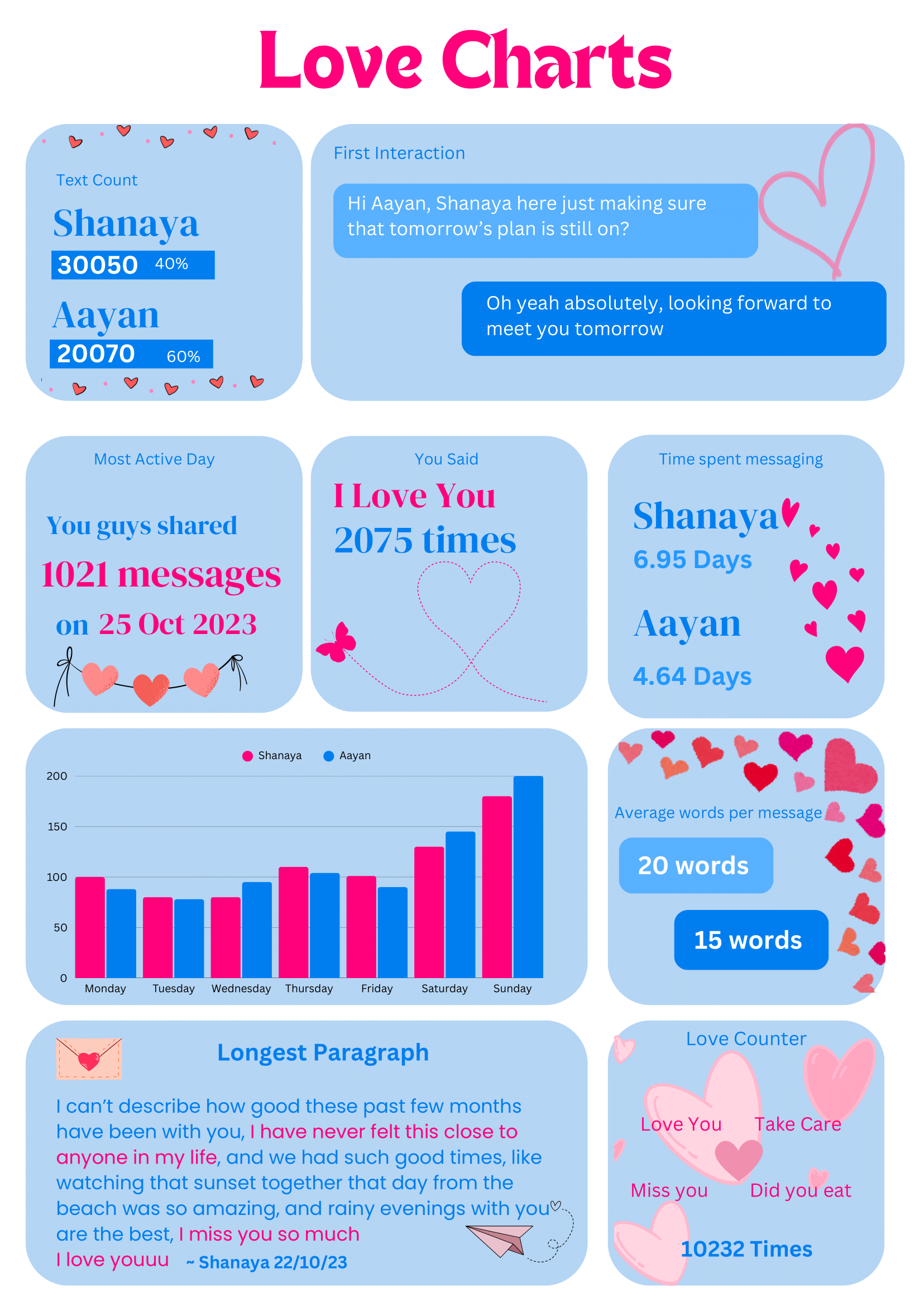
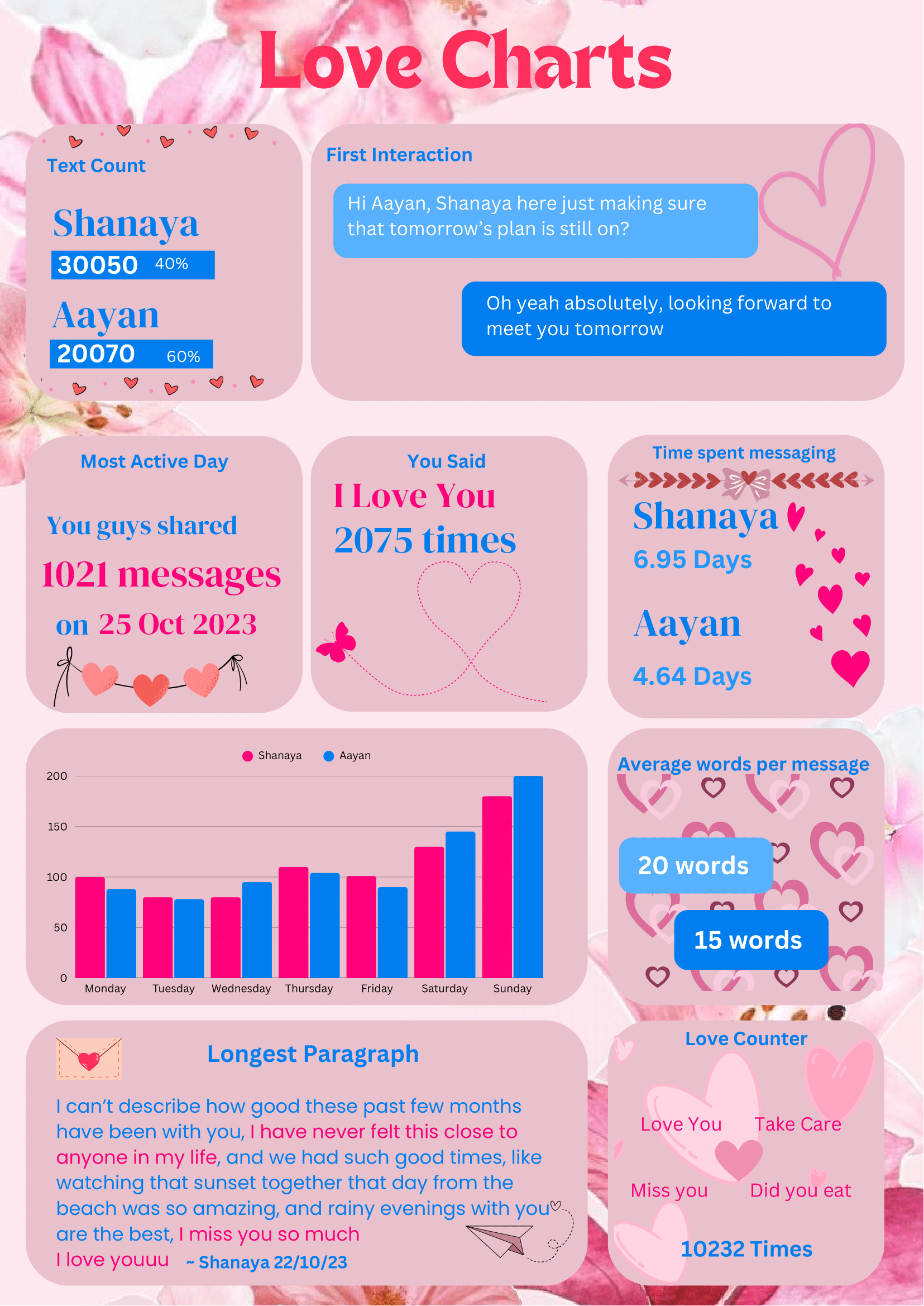
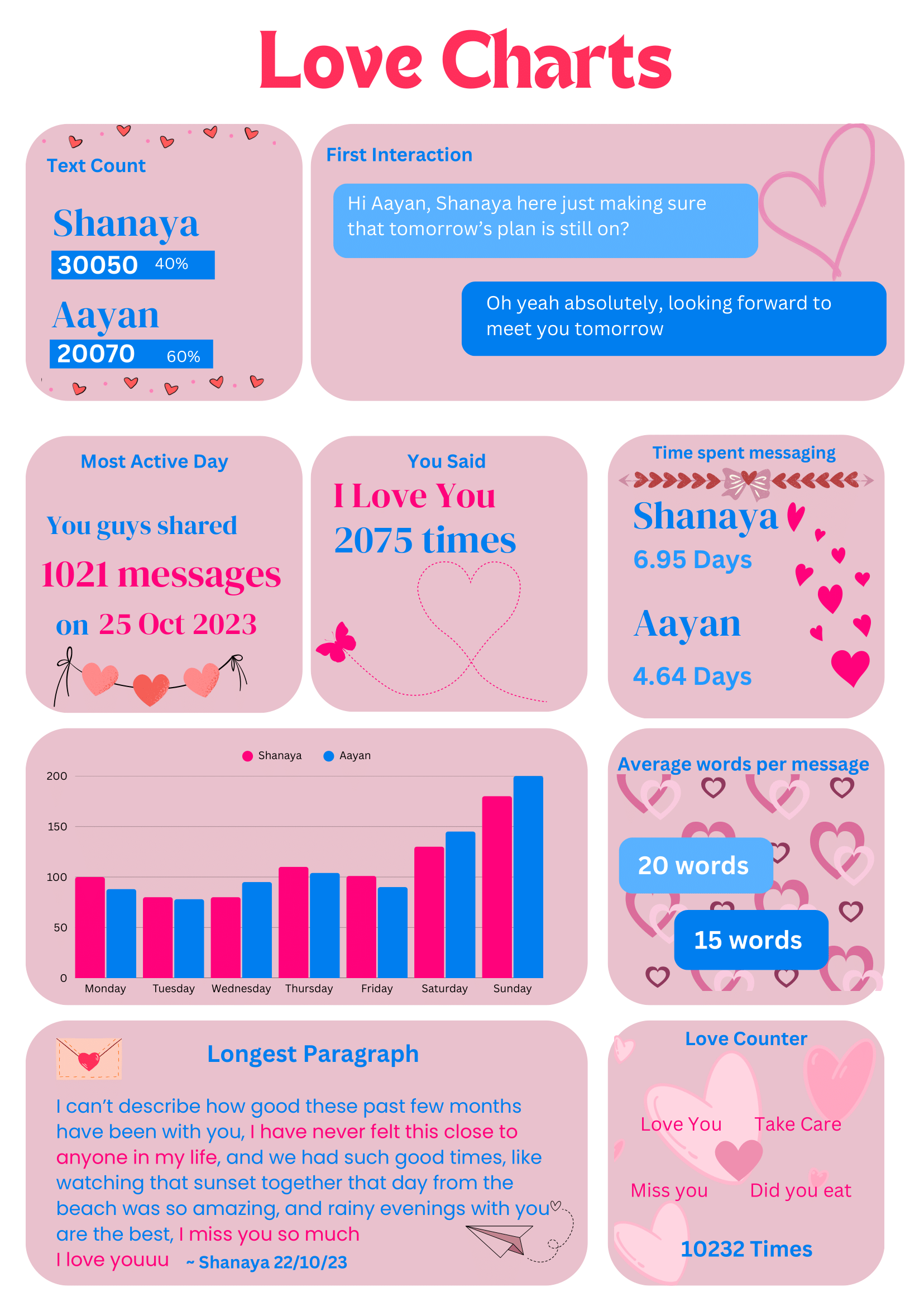
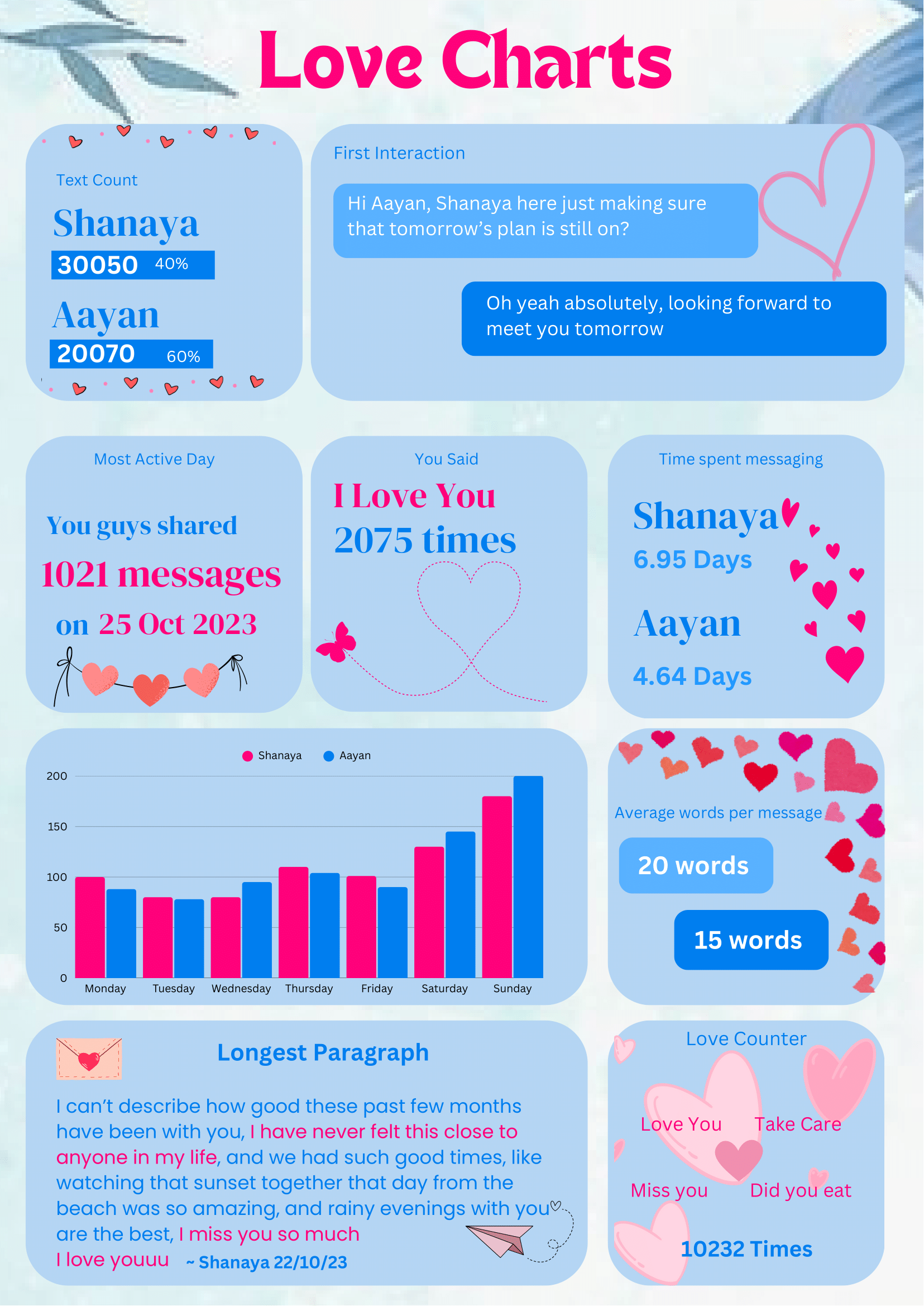
We transform your digital chats into beautifully designed art pieces that capture the essence of your relationship—perfect for anniversaries, birthdays, or just because.
Each Love Chart tells a unique story. Choose from our carefully crafted designs to match the feel of your relationship and messages.
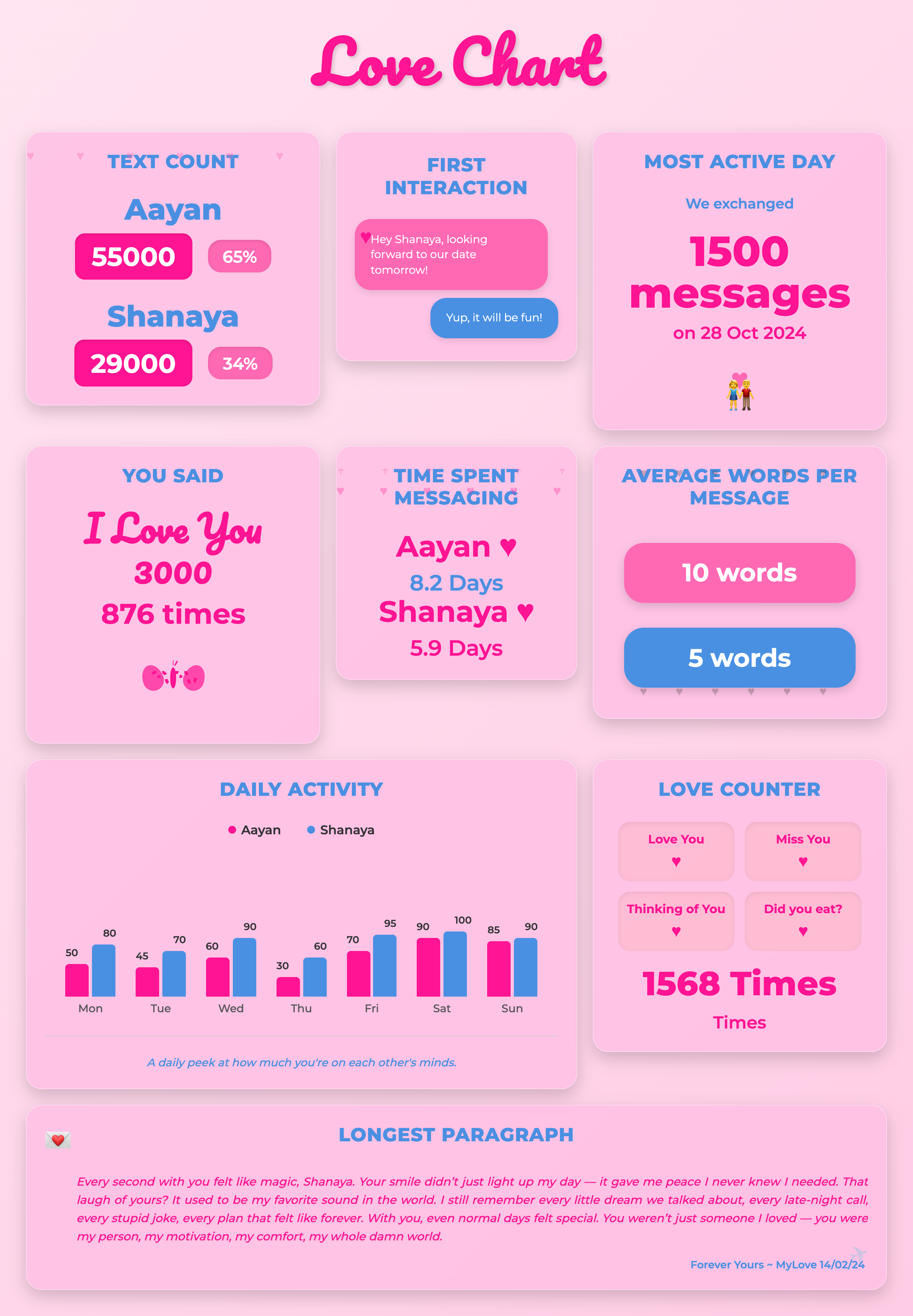
Remember how it all began with a beautifully designed chart showing your first messages and the spark that started it all.
See the ebb and flow of your conversation—from inside jokes to late-night heart-to-hearts, all visualized with care.
Give something truly unique that celebrates your special bond, available as digital art or professionally printed and framed.
We understand that your conversations are personal and meaningful. That's why we've designed our process with your privacy as the absolute priority:
We believe beautiful memories shouldn't compromise your privacy.
Follow these simple steps to export your conversations and start creating your Love Chart. Select your platform and device to see specific instructions.
Open WhatsApp and navigate to the individual or group chat you want to export.
Tap the three dots (⋮) in the top-right corner of the chat screen to open the menu.
From the dropdown menu, tap on More.
Select Export chat from the options.
When asked "Include media?", select WITHOUT MEDIA. We only need the text messages for analysis, and including media will create a much larger file that is not required.
A sharing sheet will appear. Choose your preferred method to share the `.txt` file (e.g., Email, Save to Drive, or a direct upload option if available) and then upload this file to our website.
Note: The exported file will be in `.txt` format. Our system will automatically process this to create your Love Chart. For very long conversations, this process might take a moment.
Open WhatsApp and go to the individual or group chat you wish to export.
Tap on the contact's name or group subject at the very top of the chat screen to open the chat info/details page.
On the chat info screen, scroll down to the bottom.
Tap on the Export Chat option.
When prompted "Attach Media?", select Without Media. We only need the text conversation for our analysis.
The iOS Share Sheet will appear. You can choose to "Save to Files", email it to yourself, or directly use an upload option if available. Once saved/sent, upload this `.txt` file to our website.
Note: The export process might take a moment for longer conversations. Be patient and don't close WhatsApp during this process. The exported file will be a `.txt` file.
WhatsApp Web/Desktop does not offer a direct chat export feature. You must use your mobile phone (Android or iPhone) to export the chat, and then transfer the file to your PC.
If you have an Android phone: Open WhatsApp, go to the chat, tap the three dots (⋮) in the top-right → More → Export Chat → Without Media.
If you have an iPhone: Open WhatsApp, go to the chat, tap the contact/group name at the top → scroll down → Export Chat → Without Media.
After exporting from your phone, share the `.txt` file to your PC. Common methods include:
Once you have the exported `.txt` file on your PC, upload it directly to our platform. We will then analyze it and generate your report.
Always choose Without Media when exporting, as media files are not needed for our analysis and will make the file unnecessarily large.
Open the Instagram app. Tap your profile icon in the bottom right corner, then tap the three lines (☰) in the top-right corner to open the menu. Select Settings and privacy.
In the "Settings and privacy" menu, scroll down and tap on Your activity.
Scroll to the very bottom of the "Your activity" screen and tap on Download your information.
Tap Request a download. If prompted, select the Instagram account you want to download data from. Choose JSON format for the information, then tap Next.
On the "Select information to download" screen, tap Select types of information. Scroll down and choose only Messages. You can also specify a date range if you want. Tap Submit request.
After submitting the request, Meta will prepare your data. You’ll receive an email with a download link (to the email address associated with your Instagram account) when your file is ready. This can take a few minutes to a few hours. Download the ZIP file to your device and use a file manager app to extract it.
Inside the extracted folder, navigate to `messages/inbox/` and find the folder for the specific conversation you want. Upload the `message_1.json` file from that folder to our platform. We'll do the rest.
Make sure to select JSON format, not HTML, for better compatibility with our analysis system. The download link provided in the email is temporary.
Open the Instagram app. Tap your profile icon in the bottom right corner, then tap the three lines (☰) in the top-right corner to open the menu. Select Settings and privacy.
In the "Settings and privacy" menu, scroll down and tap on Your activity.
Scroll to the very bottom of the "Your activity" screen and tap on Download your information.
Tap Request a download. If you have multiple accounts, select the Instagram account you wish to download data from. Choose JSON format for the information, then tap Next.
On the "Select information to download" screen, tap Select types of information. Scroll down and choose only Messages. You can also set a custom date range if needed. Tap Submit request.
After confirming your request, Meta will send you a download link via email (to the address associated with your Instagram account) when your data is ready. This can take a few minutes to a few hours. Download the ZIP file to your iPhone (e.g., to your Files app) and unzip it there, or transfer it to a computer to extract.
Inside the unzipped folder, navigate to the `messages/inbox/` directory and find the specific chat folder (named after your contact). Locate the `message_1.json` file within that folder and upload it to our platform for analysis.
Always select the JSON format for full compatibility with our system. The download link sent to your email is only valid for a limited time.
Go to instagram.com and log into your account. Click your profile icon in the top right, then select Settings from the dropdown menu.
In the Settings menu, click on Your activity from the left-hand navigation.
Scroll down and click on Download your information.
Click the Request a download button. Select the Instagram account you want to download data from (if you have multiple linked accounts). Choose JSON format and click Next.
On the "Select information to download" page, choose "Select types of information". Then, select only Messages. You can also specify a date range if needed. Click Submit request.
After submitting, Meta will notify you via email (to the address associated with your account) when your file is ready. This can take a few hours. Download and unzip the folder from the link provided in the email. Navigate to the `messages/inbox/` folder and find the conversation folder you want.
Inside the specific chat folder (e.g., for a conversation with a friend), locate and upload the `message_1.json` file to our site. We'll process it from there.
Make sure to choose JSON format, not HTML, or the system won't work properly. The download link sent to your email is only valid for a few days.
Love Charts has helped thousands of couples and friends preserve their special memories.